20% / 80% アラート
20% / 80% alerts
下限で「充電を」、充電中の上限で「外すタイミング」を通知。同じ状態では1回。メニューから1時間止められます。
Low-battery and “consider unplugging” alerts. Same state notifies once. Mute for 1 hour from the menu.
K-Tech PowerGuard は macOS メニューバー常駐アプリ。20% / 80% のしきい値通知(同じ状態では1回、1時間止められる)、サイクル数と設計容量の表示、MacBook Neo 4色テーマ、ガラス効果5段、充電履歴と残量推移。すべての Mac で無料です。
K-Tech PowerGuard lives in your menu bar—20% / 80% alerts (once per state, mute for 1 hour), cycle count and design capacity, MacBook Neo 4-color themes, 5-level glass UI, charging history and 24h charts. Free for every Mac.
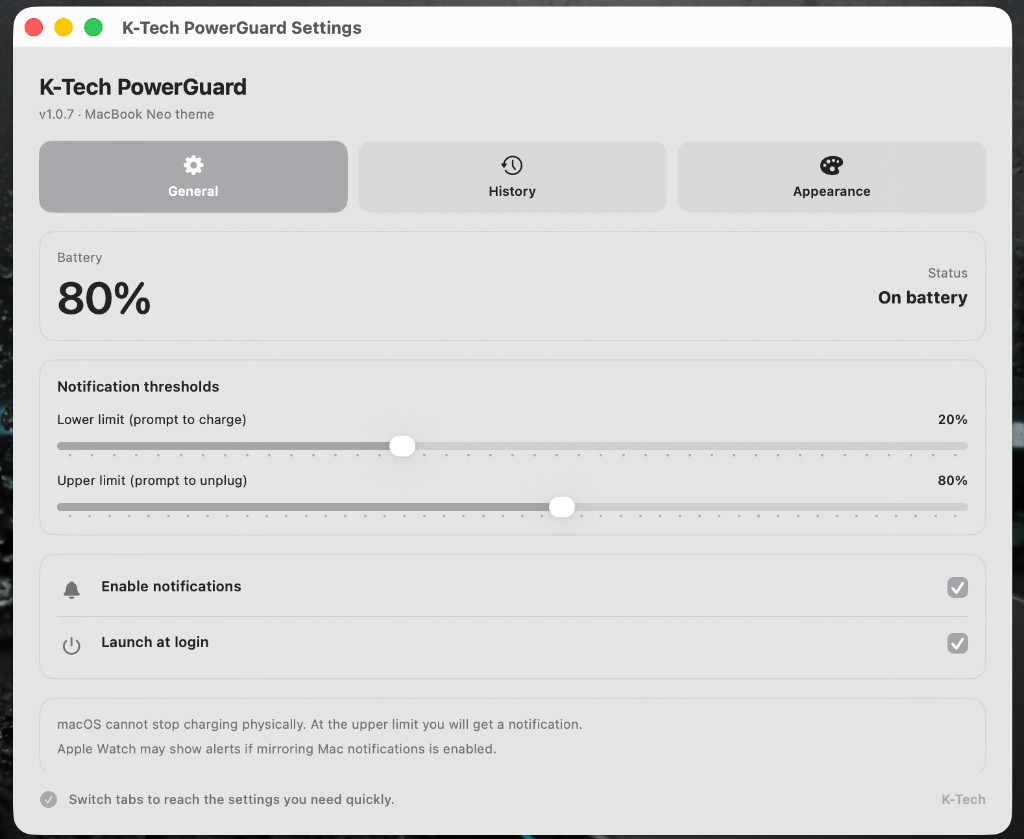
タブ式設定 · 一般 / 履歴 / 表示 — MacBook Neo テーマ Tabbed Settings — General / History / Appearance · MacBook Neo theme
バッテリー寿命を意識した充電習慣を、通知と履歴でサポート。
Support healthier charging habits with alerts and history—not hardware control.
下限で「充電を」、充電中の上限で「外すタイミング」を通知。同じ状態では1回。メニューから1時間止められます。
Low-battery and “consider unplugging” alerts. Same state notifies once. Mute for 1 hour from the menu.
Silver · Blush · Citrus · Indigo をワンタップ。カスタムアクセント色も。
One-tap Silver, Blush, Citrus, Indigo—plus custom accent colors.
オフ / 弱 / 中 / 強 / 最大。Neo カラーと組み合わせ可能。
Off, Light, Medium, Strong, Max—pairs with Neo presets.
充電セッション、今日の駆動/充電時間、直近24時間の残量推移。
Charging sessions, daily on-battery time, and a 24-hour level chart.
設定画面に表示のみ。充電の停止や寿命の判定には使いません。
Shown in Settings only. Does not stop charging or judge battery life.
Air / Pro / Neo / mini / iMac。設定に Mac モデル・チップを自動表示。
Air, Pro, Neo, mini, iMac—your model and chip shown in Settings.
表示言語を設定から切替。ログイン時起動も ON/OFF 可能。
Switch UI language in Settings. Optional launch at login.
DMG を開き、K-Tech PowerGuard を Applications フォルダへ。
Open the DMG and drag K-Tech PowerGuard to Applications.
クリック時に「開けない」と出ることがあります。削除は選ばないでください。 システム設定 → プライバシーとセキュリティ を下へスクロールし、K-Tech PowerGuard の このまま開く を押します。確認が出たらもう一度押すと利用できます。
Clicking the app may show that it cannot be opened. Do not choose Delete (or Move to Trash). Open System Settings → Privacy & Security, scroll down, and press Open Anyway for K-Tech PowerGuard. If asked again, press it once more.
システム設定 → 通知 で K-Tech PowerGuard を許可。メニューバーから設定できます。
Allow K-Tech PowerGuard in System Settings → Notifications. Then open Settings from the menu bar.
K-Tech PowerGuard は無料・オープンソースです。役に立ったら、コーヒー1杯分の応援が今後のアップデートの励みになります。
K-Tech PowerGuard is free and open source. If it helps your daily Mac routine, a coffee keeps the updates coming.
